
aidermacs: AI in emacs
About
This post assumes that you already have a preferred
Emacs configuration and you’re here to
learn about integrating aider into your development workflow.
From their website:
aider lets you pair program with LLMs to start a new project or build on your existing codebase.
Setup
First, install aider by executing:
python -m pip install aider-install
aider-install
Aider Standalone
Before you integrate aider with your emacs configuration you can test the
agent from your terminal. Taken from the main wesbite:
# Change directory into your codebase
cd /to/your/project

# DeepSeek
aider --model deepseek --api-key deepseek=<key>

# Claude 3.7 Sonnet
aider --model sonnet --api-key anthropic=<key>

# o3-mini
aider --model o3-mini --api-key openai=<key>
Install Emacs Packages
Make sure that you install aider locally like in the step
above:
Verify that your Emacs version is 30 or greater. Execute the following to upgrade your emacs installation:
sudo add-apt-repository ppa:ubuntuhandbook1/emacs
sudo apt-get update
sudo apt-get install emacs
After executing emacs --version you’ll see that you have the latest version
installed.
You may need to re-install some packages and libraries to match your desired configuration.
Open Emacs and install the aider and aidermacs packages via M-x
list-packages. Find the desired packages, press i next to each package, then
x to install them.
Add the following to your init.el file:
(use-package aidermacs
  :bind (("C-c a" . aidermacs-transient-menu))
  :config
  ; Set API_KEY in .bashrc, that will automatically picked up by aider or in elisp
  ;(setenv "ANTHROPIC_API_KEY" "sk-...")
  ; defun my-get-openrouter-api-key yourself elsewhere for security reasons
  ;(setenv "OPENROUTER_API_KEY" (my-get-openrouter-api-key))

  (setq aidermacs-default-model "ollama/deepseek-coder-v2")
  )
Once you restart Emacs you should now be able to access the aider agent with
the key binding C-c a. See the Usage section for more details
on how to interact with aidermacs.
Models
One of the beautiful things of aider is that you can choose whatever AI Model
you want (Gemini, DeepSeek, OpenAI, etc). There are multiple of free models you
can use as well. This is a list of available models to choose from:
https://aider.chat/docs/llms.html
For example, to use the openrouter/google/gemini-2.0-flash-exp:free model,
update your init.el file such that the aidermacs-default-model field points
at the model you want to use.
Run Models Locally
aider can connect to local Ollama
models. [Referece].
First install Ollama. In a Linux terminal, execute the following:
curl -fsSL https://ollama.com/install.sh | sh
You’ll see an installation message:
Created symlink /etc/systemd/system/default.target.wants/ollama.service → /etc/systemd/system/ollama.service
You should now be able to check on the status of ollama by executing:
systemctl status ollama
Start Ollama (or your local inference server) and ensure your model is pulled. For example:
ollama pull deepseek-coder-v2
Run aider with the --model flag pointing to the local endpoint:
export OLLAMA_API_BASE=http://127.0.0.1:11434
aider --model ollama/deepseek-coder-v2
Note:
When running models locally, consider that they’ll run slower depending on your machine’s GPU.
Usage
In our init.el we’ve defined the binding C-c a to access the
aidermacs-transient-menu (Figure 1). This menu summarizes the tools available
to you and the corresponding keys to execute/access each one.
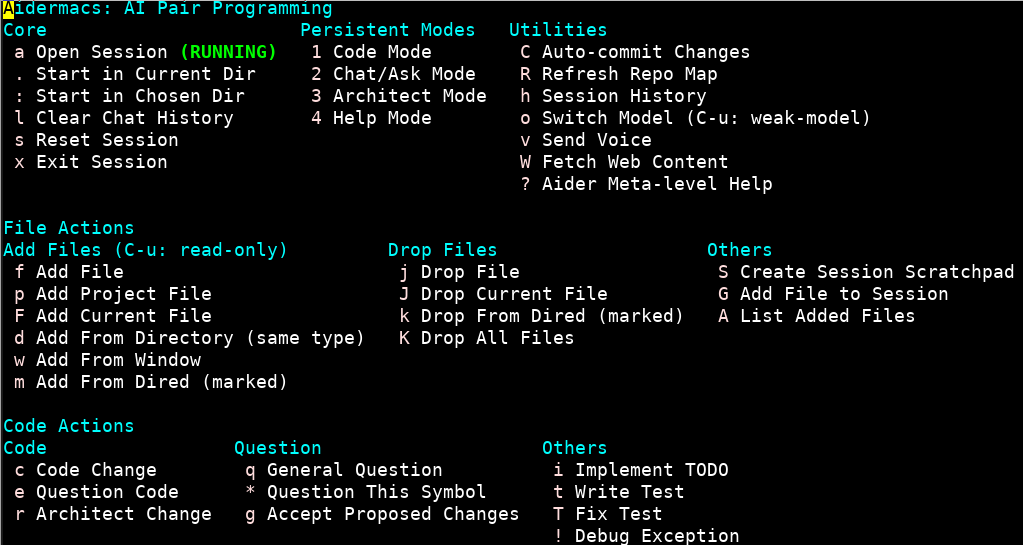
I won’t summarize each tool (mainly becuase I’m still learning myself), but the best way to learn is to dive in and play!
Scripting Aider
It is possible to write Python scripts to interact with aider. I have not yet
personally played with this functionality, but you can read more
here.